
Brackish Course on your phone
The classroom fits in your pocket, and it works when the signal does not
Most of this work happens somewhere with bad reception. So the course installs on your phone like an app, opens straight into your classroom, and keeps going when the bars run out. Nothing you write is lost while you are offline, and it all catches up the next time you are back on.
What you get once it is on there
Works with no signal
Lessons you have already opened stay readable out on the water or in a parking lot with one bar. Anything you type, answer, or finish is kept on your phone and sends itself the moment you are back on.
Lessons read like a book
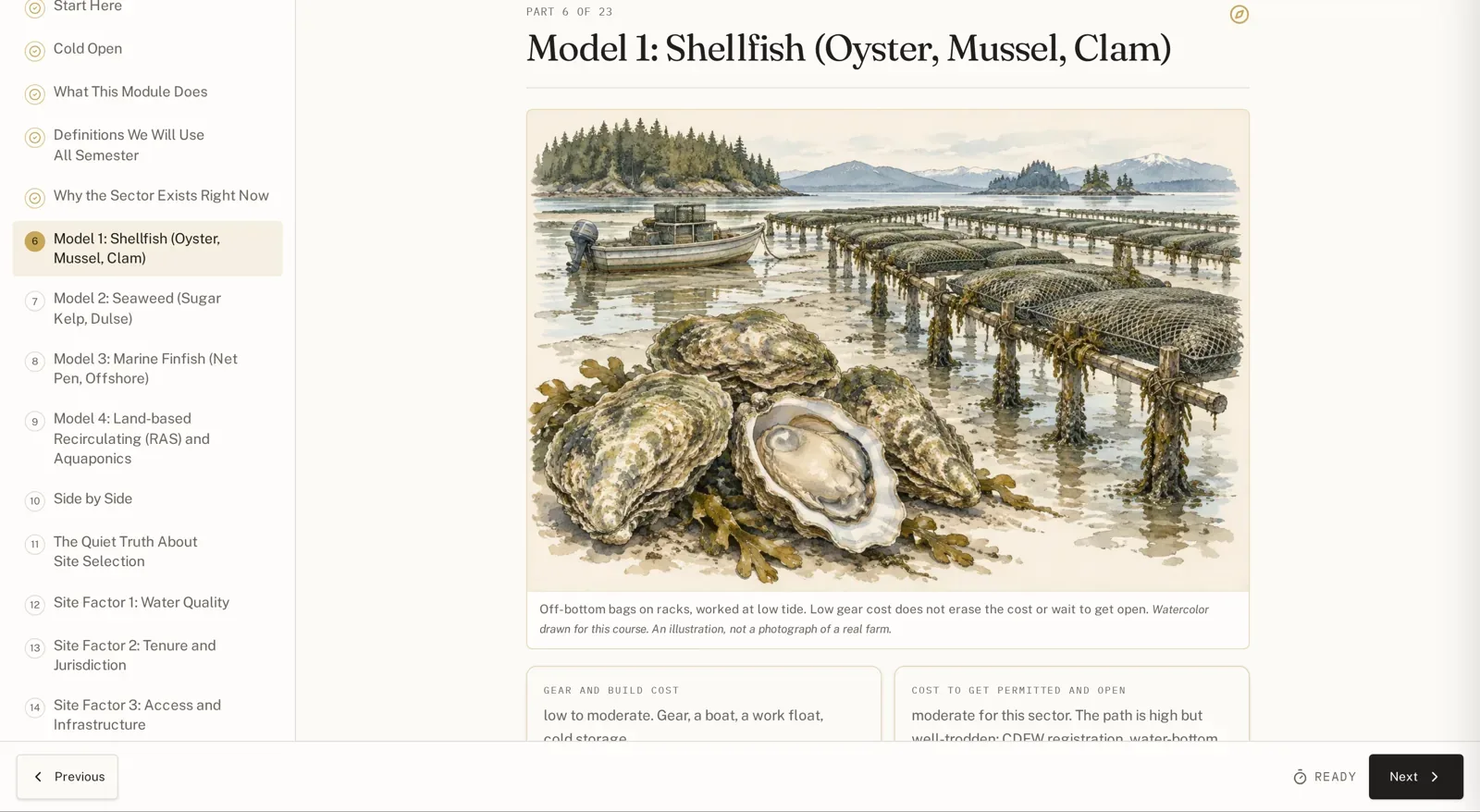
One page at a time in a full-screen reader, with a page list down the side, watercolor plates drawn for the course, and the numbers pulled out so they are easy to hold onto.
Read aloud
Have any page read to you while you drive, mend gear, or walk the beach. Your place is kept either way.
A notebook that travels
Slide out your notebook on any page, type a note, add a picture, bookmark where you stopped, and flag anything you want to come back to.
Words explained where you meet them
Course terms are marked in the text. Tap one and the plain-language meaning comes up without leaving the page.
It remembers you
Sign in once and the app opens straight into your classroom every time after that. When there is an update, it asks before refreshing, saves your work first, and keeps your place.
Practice before it counts
Every checkpoint has a practice run underneath it: warm-up questions of their own, not the checkpoint questions, with unlimited tries. At the end you see every right answer and a short note on why. Nothing you do there touches your grade.
Ask Jules from any lesson
Every page has a question box that goes straight to Jules. Your question stays private until she answers and chooses to share it with the class, and your name stays hidden unless you say otherwise.
A study guide for every module
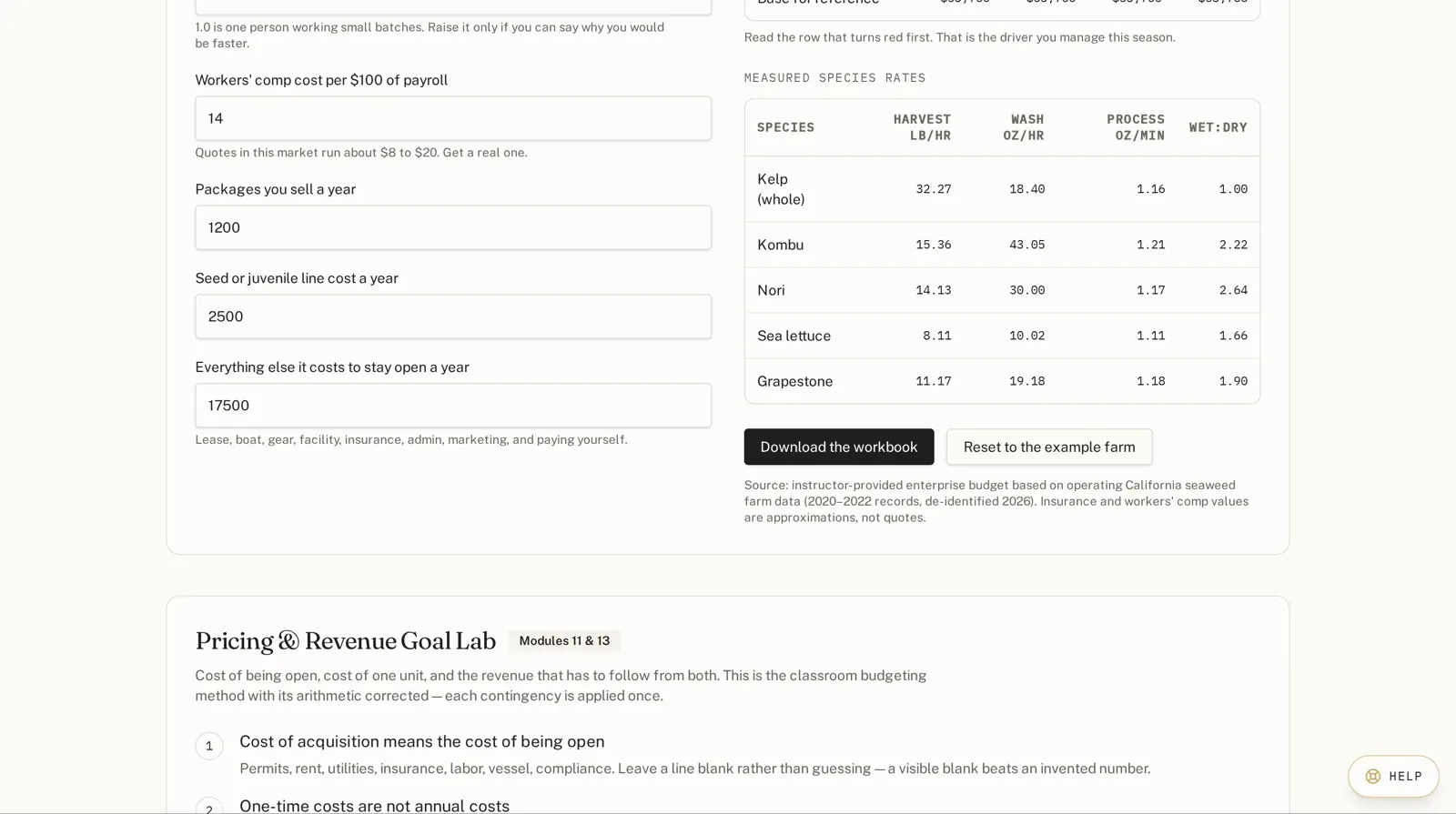
Each module has a printable guide with the lesson text, the key terms, and practice questions, made for a clipboard or a wheelhouse wall.
Adding it to an iPhone or iPad
- 1. Open brackishcourse.org in Safari.
- 2. Tap the share button at the bottom of the screen, the square with an arrow coming out of it.
- 3. Scroll down and tap Add to Home Screen, then tap Add.
- 4. Open it from your home screen and sign in once. After that it opens in your classroom.
Safari is the only browser on iPhone that can add it, so use Safari for this step.
Adding it to an Android phone
- 1. Open brackishcourse.org in Chrome.
- 2. Tap the three dots in the corner.
- 3. Tap Install app, or Add to Home screen, depending on your phone.
- 4. Open it from your home screen and sign in once.
On a laptop, Chrome and Edge show a small install button in the address bar, and it behaves the same way.
Honest about the edges
- Offline reading covers lessons you have already opened on that device. A lesson you have never visited needs one connection to come down the first time.
- Signing in, downloading the templates, and submitting work for review all need a connection. Writing the work does not.
- Nothing you type is thrown away if the connection drops mid-sentence. It waits on your phone and goes up on its own.